Blog
One email signature for the whole company: Gmail, Outlook and QR
A consistent company email signature takes two steps: an admin picks the template, colour and legal note once and locks it, and each employee copies their signature from their own card, or gets it from an admin, and pastes it into Gmail or Outlook. This guide covers the ten templates, QR codes in signatures and an admin checklist.

Contents
Plans: email signatures, QR codes and Save Contact are in Starter and higher; analytics is in every plan. Only a company admin can change the company signature settings.
A consistent email signature across the whole company takes two steps. First, a company admin opens Settings → Cards → Company email signature in the panel, picks the template, accent colour and legal note once, and can lock the template. Then each employee opens the signature page of their own card, presses Copy signature and pastes it into the signature box in Gmail or Outlook. The signature page is inside the panel, so for an employee who is not a panel user, an admin or editor copies the signature and sends it to them. The name, job title, phone number and card button in the signature come from that person's digital business card, while the layout and colour are the same for everyone. If you want, the signature can also carry the card's QR code.
We covered why a card link belongs in your signature, and the mistakes people make with it, in digital business card in your email signature. This guide is about the company-wide setup: the settings an admin makes once, choosing a template, a signature with a QR code, the steps each employee follows, and what to do when details change.
Why one signature layout?
Left alone, signatures in a team drift apart. One person enlarges the logo, another forgets to update an old job title, a third leaves out the phone number altogether. A customer who receives three emails from the same company sees three different signatures. A single layout fixes that, but building a signature by hand for every person is a job of its own. With a digital business card the signature is generated from the card's details. The admin only sets the rules; the content comes from each person's own card.
Done once by the admin: company signature settings
Only a company admin can open this screen, and your plan needs to include email signatures. The settings are:
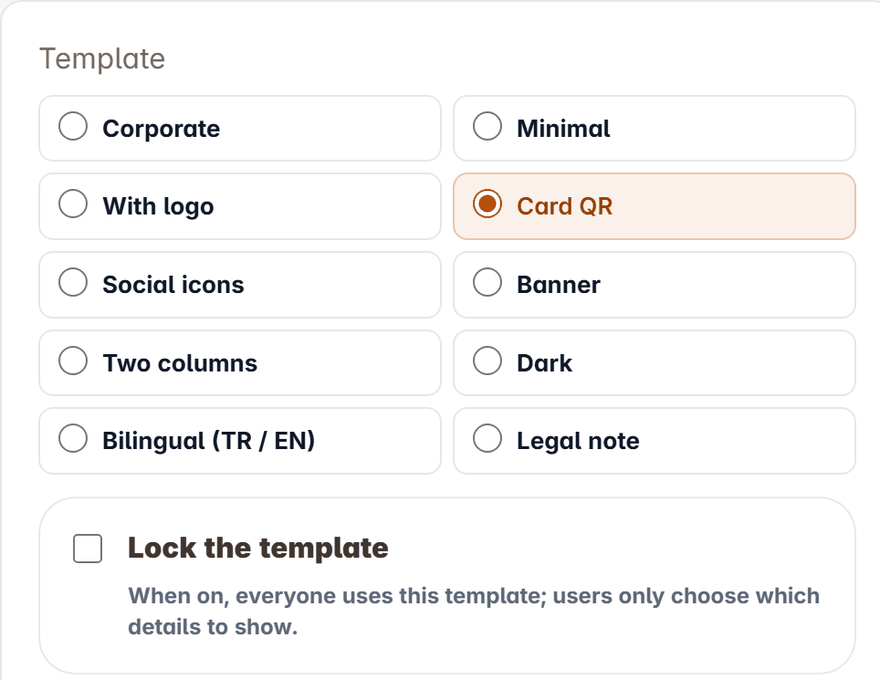
- Template: pick one of ten templates. Your choice becomes everyone's default.
- Lock template: when ticked, nobody can switch to another template. Instead of the template list, an employee's signature page shows a note that the company has locked the signature template.
- Accent colour: a colour in #RRGGBB format. Leave it empty and the colour of your card pages is used; you set your own colour in the Brand settings (Pro and higher).
- Letters instead of icons: the phone, mobile, email and web lines show the letters T, M, E and W instead of icons. This helps when recipients block images.
- Legal note: plain text shown in small type under every signature, up to 600 characters.
- Banner: appears under the signature, but only in the Banner template. PNG, JPG or WebP, up to 1.5 MB; it is resized to 960 pixels wide. You can link the banner to an address that starts with https.
The preview on the right is drawn with the admin's own card, or with one of the company's cards if no card is assigned to the admin. It changes as soon as you pick a template; the colour, legal note and banner appear in it once you save.
Which template, and when?
| Template | What the signature shows | A good fit for |
|---|---|---|
| Corporate | Photo, name and title, contact lines, social icons and the card button | Most teams, as the default |
| Minimal | Phone, email, website and card link on a single line under the name and title | Short emails and replies |
| With logo | The company logo on the left, details and the card button on the right | Teams that do not use photos |
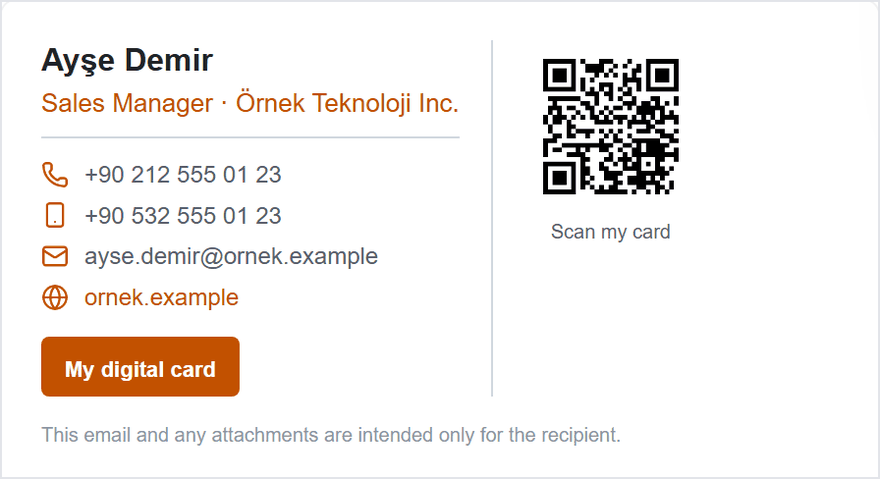
| Card QR | The card's QR code next to the details, captioned "Scan my card" | Recipients who read email on a computer |
| Social icons | Photo, contact lines and larger social icons | Roles where social profiles matter |
| Banner | The company banner under the details | Trade fair or event seasons |
| Two columns | Name and card button on the left, contact lines and social icons on the right | Email read on wide screens |
| Dark | The same details on a dark background | Brands with a dark identity |
| Bilingual (TR / EN) | Job title and company in Turkish and English, and a two-language button | Teams writing to customers abroad |
| Legal note | The legal note under the signature, in a block set off by a coloured line above it | Companies with a long legal footer |
With the panel in English, the card button reads "My digital card" and points to your card's address. When the recipient taps it, your card opens, and from there they can add you to their contacts with Save Contact.
A QR code in your email signature: the Card QR template
Does a QR code in an email signature make sense? It depends on where the email is read. On a phone, tapping the card button is enough; nobody can scan a code shown on the same phone's screen. On a computer, the QR code earns its place. The recipient points their phone camera at the code on the monitor, your card opens on their phone, and one tap saves you to their phone contacts. It is the shortest route from someone's desk to their phone.
In the Card QR template, an 88-pixel QR code sits to the right of the details with "Scan my card" underneath, and the card button stays in the signature as well. The QR code leads to the card's address through the QR channel. If someone who arrives this way leaves their details, the request shows up on the Leads screen marked QR.
Each employee: copying the signature
- Open the Cards list in the panel and tap the envelope icon (Email signature) on your card's row.
- If the company has not locked the template, pick one from the list at the top; the preview updates as you choose.
- Press Copy signature. The signature is copied with its formatting and can be pasted straight into your email program's signature box.
- If your program asks for source code, use the text in the Signature HTML field instead.
How to add your business card to a Gmail signature: in Gmail, open Settings (the gear icon) → See all settings → General tab → Signature. Create a new signature, paste what you copied into the signature box, and save with "Save changes" at the bottom of the page. Outlook: open Settings → Accounts → Signatures; in the desktop app the route is File → Options → Mail → Signatures. Add a new signature, paste, set it as the default for new messages and replies, and save. The same steps are listed on the right of the signature page.
Email apps on phones often use their own signature setting and do not always accept a formatted signature. There, it is enough to type your name, job title and your card's link as plain text.
The details come from the card
Nobody fills in a separate form for the signature. Each part is read from a field on the card:
| In the signature | Where it comes from on the card |
|---|---|
| Full name, job title and company | The Identity step |
| Phone, mobile, email and website | The Contact details step |
| Social icons | The social accounts in the About and links step |
| Photo and logo | The Images and template step (an SVG logo does not appear in the signature) |
| English job title and company (Bilingual template) | The English page step |
| Card button and QR code | The card's address |
The photo, logo, QR code and icons load from our server as PNG files. If the recipient blocks images, only the text shows, so the signature has to read well without them. The signature does not track opens: it tells you nothing about whether an email was read.
When details change
Once copied, a signature carries the card's details as text. When a job title or phone number changes, update the card first, then copy the signature again from the signature page and paste it into your email program. The card button and the QR code point to the card's address, and editing the card does not change that address. That is why the link in older emails still opens the current card. Do not change the card address by hand once it is live: printed QR codes, NFC tags and signatures already sent all depend on it.
When someone leaves, set their card to inactive. Anyone who opens the link in an old email then sees "This business card is not published" instead of outdated details. A new starter's card and signature can be ready on their first day; the onboarding steps are in a new hire's business card on day one.
Rolling it out to the team
The settings are made once, but each signature lives in the employee's own email program, so the switch needs a short note to the team. Include three things: where to get the signature (the envelope icon in the Cards list for panel users; for everyone else, an admin or editor sends it), the date by which everyone should paste the new signature, and who to send a test email to. Review the cards before you send the note, because a card without a job title means a signature without one. A few days after the switch, glance at emails from the team to see who is still using an old signature.
An admin's checklist
- Are the cards complete? The signature is built from the card. A card without a job title or phone number produces a signature without them.
- Logo format: an SVG logo does not appear in the signature. Upload PNG or JPG logos to the cards.
- One template: choose a template and lock it, so that employees' signature pages only offer the company's choice.
- A test email: everyone who pastes the signature should send themselves an email and open it on a phone and a computer.
- The image-free view: if your recipients often block images, switch on letter labels.
- Matching cards: the button in the signature opens the card, so the cards should look consistent too; see card templates and the QR card image.
How visits from the signature show up
A card page opened from the card button counts as a scan in analytics; it is not separately marked as coming from the signature. A card opened from the QR code is recorded through the QR channel. If a visitor leaves their details, the request goes to the Leads screen: requests that came through the QR code are marked QR, while requests that came through the card button carry no channel. The QR code in the signature carries no tag, so if your printed material and the QR images you show use only tagged QR codes, untagged QR leads mostly come from the signature. Analytics does not show the identity of the person who opens a card; how to read the numbers is explained in digital business card analytics.
Frequently asked questions
Can employees change their own signature?
If the template is not locked, they can choose a different one on their card's signature page. If it is locked, the template is the one the company chose. Either way, the details in the signature come from the person's own card.
Does the panel install the signature in Gmail or Outlook?
No. Each employee copies their signature once and pastes it into their own email program. The steps for Gmail and Outlook are also shown on the signature page.
QR code or card button in the signature?
Both. The Card QR template keeps the button too: people reading on a phone tap the button, and people reading on a computer scan the QR code with their phone.
Where does the English job title in the Bilingual template come from?
From the job title and company name entered in the card's English page step. If both languages are filled in, the signature shows them side by side as "Turkish / English"; if the English field is empty, only the Turkish text appears.
Which plan do we need?
Email signatures, QR codes and Save Contact are in Starter and higher; analytics is in every plan. The plans are compared on the pricing page, and the whole product is described on the digital business card page.


